
Streaming your favorite TV series or Korean variety show should be a seamless experience. However, viewers frequently encounter a frustrating problem: episode numbers on streaming apps do not match what they remember, or the app uses generic titles like “Episode 1” across multiple seasons.
You might notice that a K-Drama listed as 16 episodes on Netflix is displayed as 32 episodes on local apps like Wavve. Similarly, variety shows like Running Man often feature hundreds of episodes with non-descript titles, making it difficult to find a specific guest appearance.
This guide explains why episode numbers get mixed up on streaming platforms and shows you how to use air dates, guest lists, and file metadata to identify the exact episode you want to watch.
Why episode numbers are completely mixed up on Korean streaming apps
Episode numbering confusion is rarely a random glitch. On Korean streaming services, discrepancies usually stem from commercial broadcasting history and regional editing cuts.
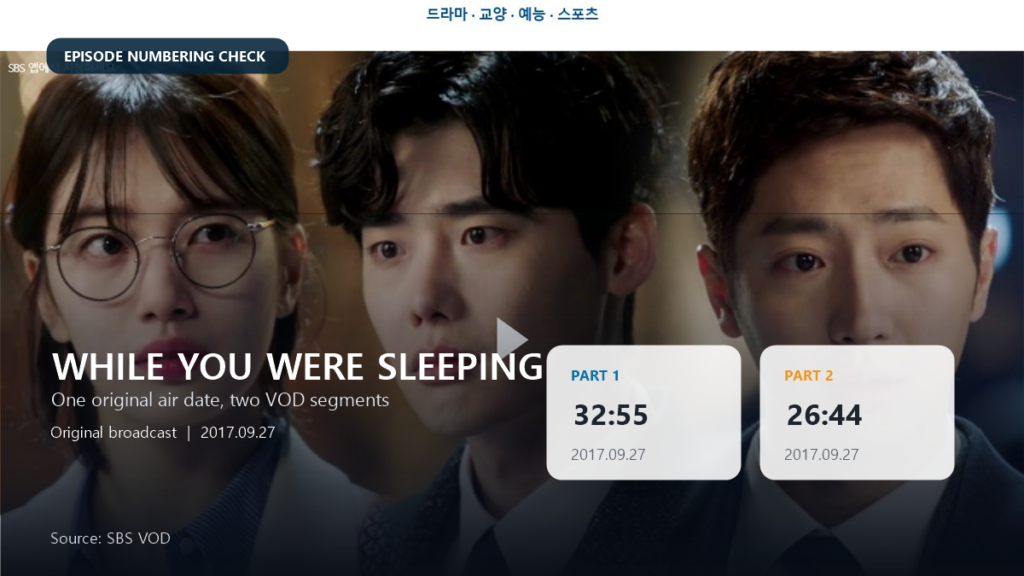
The Part 1 / Part 2 commercial split history
Prior to recent broadcasting law reforms in Korea, terrestrial TV networks (SBS, KBS, and MBC) were legally prohibited from airing traditional mid-roll commercial breaks during drama broadcasts. To bypass this restriction, networks began splitting a standard 60-minute broadcast into two 30-minute halves, labeling them as Part 1 and Part 2 separated by a short commercial break.
Because of this system, local Korean platforms like Wavve cataloged each 30-minute half as an individual episode, resulting in a 32-episode count for a standard drama season. Global platforms like Netflix, however, stitched the two halves back together into a single 60-minute episode, resulting in a 16-episode count.
TV broadcast vs Netflix edit cuts
International streaming releases often undergo re-editing. A global release on Netflix may combine special episodes, trim scenes to fit international licensing rules, or replace copyrighted background music. These edits alter both the total runtime and the official episode order compared to the original Korean TV broadcast.
How to use original air dates and file properties to find the real episode
When episode titles and numbers are unreliable, fixed identifiers like original broadcast dates and studio production codes provide the most accurate way to verify a title.
Checking the original air date on streaming apps and databases
Episode titles may change when translated or re-released, but the original broadcast date (방영일자) remains constant. Most streaming platforms display the original air date in small text directly below the episode title or inside the episode description menu.
If the air date is missing from your streaming app, search the show’s title on trusted databases like Naver TV Info (네이버 방송정보) or IMDb. Matching the air date listed on the platform with the database entry will instantly confirm whether you have selected the correct episode.

Finding production codes inside video file properties
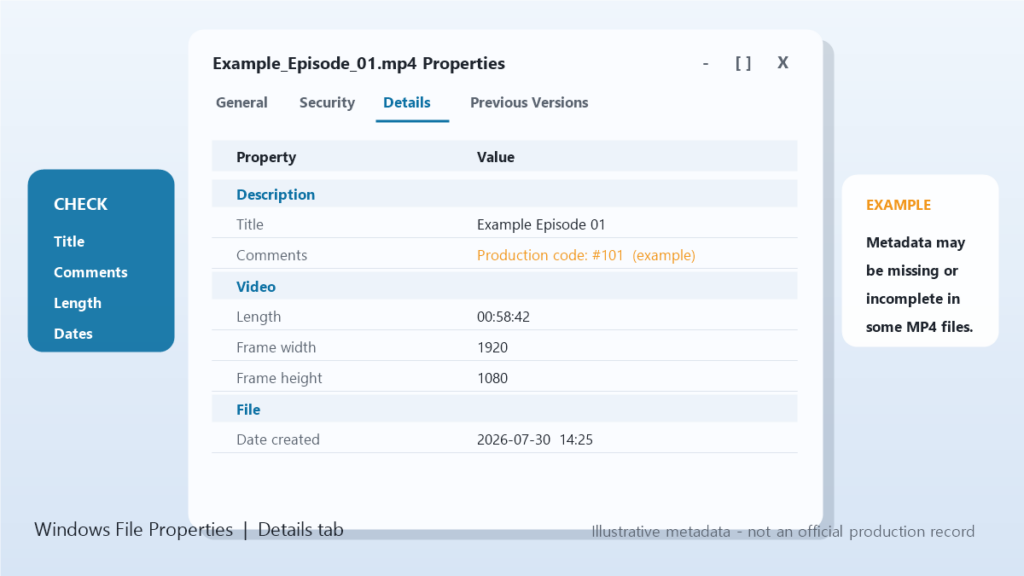
If you are organizing downloaded media files on your computer, relying on filenames like “Episode_01.mp4” can easily lead to mislabeled libraries. Studios assign a unique alphanumeric production code (such as #101 or #204) to every episode during filming.
To find this code on a computer, right-click the video file, select “Properties,” and open the “Details” tab. Look for the “Title” or “Comments” section. If the production code is embedded in the metadata, you can match it against official studio release lists to verify the episode regardless of how the file was named.
How to identify an episode when numbers and dates are missing
For long-running Korean variety shows like Running Man or Knowing Bros, streaming apps often display generic episode numbers without showing original air dates. In these cases, alternative lookup methods are necessary.
Searching by guest star names
Korean variety shows rely heavily on guest celebrity appearances. If you are looking for a specific episode, do not waste time scrolling through generic episode lists on streaming apps. Instead, search Naver or Wikipedia using the formula: [Show Name] + [Guest Name].
For example, searching “Running Man BTS” on Naver will immediately yield the exact original broadcast date and official episode number, allowing you to jump straight to the correct entry on TVING or Wavve.
Comparing runtimes and iconic opening scenes
If you suspect an episode is mislabeled, check the total runtime displayed on the video player timeline. Director’s cuts, broadcast edits, and web-only special editions usually differ in length by several minutes. Additionally, skipping to the first 3 minutes to verify the opening scene against episode summaries on fan wikis will quickly confirm the episode’s identity.
Episode identification checklist: Where to look and what to do
Use this quick reference checklist whenever you encounter inconsistent episode titles or confusing numbering on a streaming service:
| Information source | Where to look | What to do next |
| Original air date | Below video title or on Naver/IMDb | Match the broadcast date (방영일자) to confirm the episode |
| Production code | File properties -> Details tab | Match the code (e.g., #101) to official studio release lists |
| Guest star name | Naver search or show Wikipedia page | Search “[Show Name] + [Guest Name]” to get the exact episode number |
| Episode runtime | Video player timeline | Compare total minutes to spot split episodes or director’s cuts |